
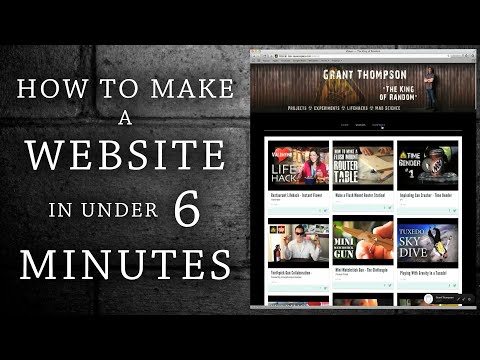
for this project let’s see how fast we
can build a website from scratch my goal
start to finish in six minutes flat
this video is kindly sponsored by
Squarespace com some of you might
remember a few months ago that YouTube
accidentally deleted my entire channel
and terminated my account thankfully
it’s back online now but obviously we
need a back-up plan for you king of
random fans in case of another emergency
with or without YouTube I’ll keep making
videos but how are you going to know
when and where I post them I formed an
inner circle and you can become part of
it by clicking here now to set up a
6-minute website let’s start by going to
Squarespace comm and clicking on the
button that says get started you can see
the first thing that pops up is a number
of templates that we could use to design
our web page and I’m going to keep it
simple by going with a template called
Beatrice here are some examples of what
other people have done with the layout
but let’s just go ahead and click start
with this design if we enter a name
email and password that’s really about
all we need to get this started now this
next part should go fairly fast so don’t
try to keep up on details just sit back
and enjoy with the timer started we can
skip the intro video by hitting escape
then go to the main navigation bar on
the left click the gear icon and click
to make a page like this this is going
to be our home page so let’s change the
name and the URL to match then click
Save now you’d really have to do is swap
out your text and pictures with what’s
already here but in this case I’d prefer
to start with a blank page so let’s just
delete the items one by one until
everything’s gone
now that our page is blank why don’t we
make another one by clicking add page
selecting a blank page and let’s call
this one videos while we’re here let’s
add one more page and call it contact
okay with that save let’s go back to our
home page and click on the plus sign at
the top this opens a bunch of item
options and the first thing we need is a
newsletter block this will create our
mailing list for our inner circle let’s
change the name then click the storage
tab so we can connect it to a databasing
service like MailChimp or Google Docs I
chose to use Google Docs and as you can
see it’s as easy as creating a name for
database and clicking save now if we go
to the top and click view page it’ll ask
us to save our work and here’s what the
web page looks like so far now check
this out if we click the pencil at the
bottom we can highlight the footer text
and paste in some custom information in
its place
now if we save that click the X and now
click on the paintbrush icon we can
access the style mode this means we can
edit the banner image delete it and
upload one of our own there we go much
better already but I’m not a very big
fan of this site title covering the
bottom of the banner unfortunately we
can’t delete it
but if we click the site title
properties we can adjust the line height
down to one pixel and that pretty much
gets rid of it now it’s hard to tell but
there’s a yellowish background image as
well and if we delete that then click on
site background we can adjust it to a
custom background color and I’m going
with black the only problem with that is
that the words are harder to read to fix
that let’s adjust the text colors for
the navigation active text the
navigation hover text the standard
navigation font the main body font and
the text color for the footer I’m
basically just changing the colors of
all the different words and I’m sure you
get the idea now you can see the mailing
list area is still pretty dark so let’s
fix that by scrolling to the bottom left
and changing the newsletter style from
dark to light
that’s better already but we can also
change the newsletter background to a
custom color of our choice and while
we’re at it change the button color so
it’s a little more prominent as well now
to tighten everything up let’s go to the
page padding scroll bar and adjust the
padding level down to around 25 pixels
so it pulls everything together
now let’s X out of the style mode and
see how it looks okay cool now let’s
escape back to the Edit menu click the
left side gear icon select basic
information and give our website a name
of course this one is for the king of
random and we can customize it further
by scrolling down and uploading a logo
into the browser icon section next let’s
click the index for domains and you can
see this will give us the option to
customize our URL in this case I’m just
going to call it TKO our but that can be
changed anytime you want now if you look
at the URL at the top you should see
your icon as well as your custom
Squarespace URL ok cool let’s
keep going let’s try adding a page in
the not linked section and choose the
gallery page option I’m going to name
this one video gallery and although this
page will be invisible to our visitors
it’s still very valuable to our page let
me show you why when I click add images
or video select video then paste the URL
for one of my youtube uploads you can
see it automatically populates the video
title thumbnail and sets the image
overlay now when we save it a little
video thumbnail pops up on the unlinked
page I’m going to add seven more videos
just like this and I’ll speed the
process just for convenience because I’m
sure you already get it at this point
let’s head back to the home page click
the plus sign under the mailing list and
select add a line this is mainly just
for looks now let’s click the plus sign
again and this time choose gallery use
existing gallery and select the video
gallery we just created now if we go to
design and click gallery design there’s
an option for a customizable grid layout
that looks pretty awesome we’ll watch
this
if we add another gallery the exact same
way but this time keep the slideshow
option and click the autoplay feature
watch what happens we can drag and drop
the slideshow gallery down beside the
thumbnail grid gallery and it
automatically reformats the layout let’s
save that and view the page now here
we’ve got a clean-looking signup page
with a video slideshow and video
thumbnails set right beside it nice ok
to finish up the other two pages let’s
click the gear icon at the bottom and
quickly edit the videos page this time
when we add a new block option let’s
scroll down until we find the block for
inserting code all we need to do is
delete the code that’s already there and
paste this free embed code I got from
10.com
you can see that if we view the page now
all of my recent YouTube videos are
automatically populated into a grid but
they are a little off-center let’s fix
that in the style mode by grabbing onto
the side of the page and setting the
page width to 1100 pixels now you can
see the video list is adjusted so it’s
perfectly centered and this page is done
lastly let’s hit escape and click to
edit our contact page this is going to
be as simple as scrolling down and
finding the option for creating a form
I’m going to call this one contact then
deselect it from sending emails and
and sync it up with my Google Docs now
let’s see what this is going to look
like click view page save and there’s
our contact form so there you have it in
under six minutes we have a website with
a built-in registration for my private
mailing list not to mention a few of my
favorite projects all my newest posts
and a contact page everything else from
here on in is just supplemental you can
see how easy it would be to add a page
for blogs photo galleries or even making
an online store by the way if you
haven’t joined my mailing list yet now
is the time to do it I’ve got a lot of
prizes I’m going to start randomly
giving away and of course it doesn’t
cost you anything to be a part of it
well that’s it for now if you liked this
project perhaps you’ll like some of my
others check them out at the king of
random calm before you go if you’re
thinking about using Squarespace to
build a website of your own you can get
a free trial by heading over to
Squarespace calm slash random or use the
promo code random to get 10% off your
purchase please make sure to double
check the link in the description
because they’ll track it back to me and
it really helps me make more videos
thanks again and best of luck
can build a website from scratch my goal
start to finish in six minutes flat
this video is kindly sponsored by
Squarespace com some of you might
remember a few months ago that YouTube
accidentally deleted my entire channel
and terminated my account thankfully
it’s back online now but obviously we
need a back-up plan for you king of
random fans in case of another emergency
with or without YouTube I’ll keep making
videos but how are you going to know
when and where I post them I formed an
inner circle and you can become part of
it by clicking here now to set up a
6-minute website let’s start by going to
Squarespace comm and clicking on the
button that says get started you can see
the first thing that pops up is a number
of templates that we could use to design
our web page and I’m going to keep it
simple by going with a template called
Beatrice here are some examples of what
other people have done with the layout
but let’s just go ahead and click start
with this design if we enter a name
email and password that’s really about
all we need to get this started now this
next part should go fairly fast so don’t
try to keep up on details just sit back
and enjoy with the timer started we can
skip the intro video by hitting escape
then go to the main navigation bar on
the left click the gear icon and click
to make a page like this this is going
to be our home page so let’s change the
name and the URL to match then click
Save now you’d really have to do is swap
out your text and pictures with what’s
already here but in this case I’d prefer
to start with a blank page so let’s just
delete the items one by one until
everything’s gone
now that our page is blank why don’t we
make another one by clicking add page
selecting a blank page and let’s call
this one videos while we’re here let’s
add one more page and call it contact
okay with that save let’s go back to our
home page and click on the plus sign at
the top this opens a bunch of item
options and the first thing we need is a
newsletter block this will create our
mailing list for our inner circle let’s
change the name then click the storage
tab so we can connect it to a databasing
service like MailChimp or Google Docs I
chose to use Google Docs and as you can
see it’s as easy as creating a name for
database and clicking save now if we go
to the top and click view page it’ll ask
us to save our work and here’s what the
web page looks like so far now check
this out if we click the pencil at the
bottom we can highlight the footer text
and paste in some custom information in
its place
now if we save that click the X and now
click on the paintbrush icon we can
access the style mode this means we can
edit the banner image delete it and
upload one of our own there we go much
better already but I’m not a very big
fan of this site title covering the
bottom of the banner unfortunately we
can’t delete it
but if we click the site title
properties we can adjust the line height
down to one pixel and that pretty much
gets rid of it now it’s hard to tell but
there’s a yellowish background image as
well and if we delete that then click on
site background we can adjust it to a
custom background color and I’m going
with black the only problem with that is
that the words are harder to read to fix
that let’s adjust the text colors for
the navigation active text the
navigation hover text the standard
navigation font the main body font and
the text color for the footer I’m
basically just changing the colors of
all the different words and I’m sure you
get the idea now you can see the mailing
list area is still pretty dark so let’s
fix that by scrolling to the bottom left
and changing the newsletter style from
dark to light
that’s better already but we can also
change the newsletter background to a
custom color of our choice and while
we’re at it change the button color so
it’s a little more prominent as well now
to tighten everything up let’s go to the
page padding scroll bar and adjust the
padding level down to around 25 pixels
so it pulls everything together
now let’s X out of the style mode and
see how it looks okay cool now let’s
escape back to the Edit menu click the
left side gear icon select basic
information and give our website a name
of course this one is for the king of
random and we can customize it further
by scrolling down and uploading a logo
into the browser icon section next let’s
click the index for domains and you can
see this will give us the option to
customize our URL in this case I’m just
going to call it TKO our but that can be
changed anytime you want now if you look
at the URL at the top you should see
your icon as well as your custom
Squarespace URL ok cool let’s
keep going let’s try adding a page in
the not linked section and choose the
gallery page option I’m going to name
this one video gallery and although this
page will be invisible to our visitors
it’s still very valuable to our page let
me show you why when I click add images
or video select video then paste the URL
for one of my youtube uploads you can
see it automatically populates the video
title thumbnail and sets the image
overlay now when we save it a little
video thumbnail pops up on the unlinked
page I’m going to add seven more videos
just like this and I’ll speed the
process just for convenience because I’m
sure you already get it at this point
let’s head back to the home page click
the plus sign under the mailing list and
select add a line this is mainly just
for looks now let’s click the plus sign
again and this time choose gallery use
existing gallery and select the video
gallery we just created now if we go to
design and click gallery design there’s
an option for a customizable grid layout
that looks pretty awesome we’ll watch
this
if we add another gallery the exact same
way but this time keep the slideshow
option and click the autoplay feature
watch what happens we can drag and drop
the slideshow gallery down beside the
thumbnail grid gallery and it
automatically reformats the layout let’s
save that and view the page now here
we’ve got a clean-looking signup page
with a video slideshow and video
thumbnails set right beside it nice ok
to finish up the other two pages let’s
click the gear icon at the bottom and
quickly edit the videos page this time
when we add a new block option let’s
scroll down until we find the block for
inserting code all we need to do is
delete the code that’s already there and
paste this free embed code I got from
10.com
you can see that if we view the page now
all of my recent YouTube videos are
automatically populated into a grid but
they are a little off-center let’s fix
that in the style mode by grabbing onto
the side of the page and setting the
page width to 1100 pixels now you can
see the video list is adjusted so it’s
perfectly centered and this page is done
lastly let’s hit escape and click to
edit our contact page this is going to
be as simple as scrolling down and
finding the option for creating a form
I’m going to call this one contact then
deselect it from sending emails and
and sync it up with my Google Docs now
let’s see what this is going to look
like click view page save and there’s
our contact form so there you have it in
under six minutes we have a website with
a built-in registration for my private
mailing list not to mention a few of my
favorite projects all my newest posts
and a contact page everything else from
here on in is just supplemental you can
see how easy it would be to add a page
for blogs photo galleries or even making
an online store by the way if you
haven’t joined my mailing list yet now
is the time to do it I’ve got a lot of
prizes I’m going to start randomly
giving away and of course it doesn’t
cost you anything to be a part of it
well that’s it for now if you liked this
project perhaps you’ll like some of my
others check them out at the king of
random calm before you go if you’re
thinking about using Squarespace to
build a website of your own you can get
a free trial by heading over to
Squarespace calm slash random or use the
promo code random to get 10% off your
purchase please make sure to double
check the link in the description
because they’ll track it back to me and
it really helps me make more videos
thanks again and best of luck
Please follow and like us:
Be First to Comment