
hi I’m Rebecca Brayton and welcome to
watchmojo.com and today we’ll be showing
you the top five things you should know
about Windows 8 first thing you see when
you unlock your pc is your Start screen
and your Start screen is not just a sea
of static app icons they’re actually
tiles and we call them live tops the
reason why we call them live tiles is
simply because these tiles are alive
they’re feeding us with real information
so this is the new start screen that I
was talking about it’s colorful it’s
personalized with my favorite apps I’ve
got my favorite people as well pinned
here and my favorite websites that i
have here now the next thing i can do is
i can pinch and seeing all of you of my
Start screen I can navigate quickly
through it I can also notice I’ve coupe
them in different groups my tiles I can
move them around by groups and place
them wherever I want and some people
pinch back to zoom in and I can flick
through my towel here also what you can
do with a tablet or a PC is go back to
the desktop mode that you’re comfortable
and that you’ve used in the past with
previous generations of Windows if I go
back to my Start screen you’ll notice a
towel that says desktop if I tap on it I
go back to my desktop mode which I’m
familiar
now when you’re using touch you can
swipe from any sides of your tablet
whether it’s the right side the left
side the top or down and each side has a
specific feature or function that will
allow you to do different things
multitask open the system commands or
open up the app commands this is the
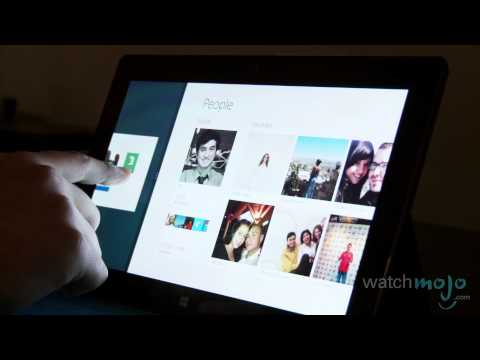
People app for example if I want a multi
task I can simply flick through previous
apps that I had open snap them on the
side here I’ve got two apps running side
by side if I want to change the ratio a
simply do this there we go if you’re not
comfortable with your fingers and you
want the precision of a mouse you can
always use a mouse and keyboard wherever
you are whether you’re on the desktop
environment or the modern windows 8
environment so if you want to be fully
productive and use legacy apps desktop
apps similar to Microsoft Office plug in
a mouse plug in a keyboard there you go
you can open up word powerpoint excel
and actually start working
windows 8 comes pre-installed on a wide
variety of form factors starting with
the tablets the notebooks that summer
touch-enabled or even convertibles that
can convert from tablet into a
traditional notebook you have your cover
that’s also a keyboard you have a
trackpad so you have mouse gestures as
well and all-in-ones so bigger form
factors that sit on your desks and that
are actually touch your neighborhood as
well
watchmojo.com and today we’ll be showing
you the top five things you should know
about Windows 8 first thing you see when
you unlock your pc is your Start screen
and your Start screen is not just a sea
of static app icons they’re actually
tiles and we call them live tops the
reason why we call them live tiles is
simply because these tiles are alive
they’re feeding us with real information
so this is the new start screen that I
was talking about it’s colorful it’s
personalized with my favorite apps I’ve
got my favorite people as well pinned
here and my favorite websites that i
have here now the next thing i can do is
i can pinch and seeing all of you of my
Start screen I can navigate quickly
through it I can also notice I’ve coupe
them in different groups my tiles I can
move them around by groups and place
them wherever I want and some people
pinch back to zoom in and I can flick
through my towel here also what you can
do with a tablet or a PC is go back to
the desktop mode that you’re comfortable
and that you’ve used in the past with
previous generations of Windows if I go
back to my Start screen you’ll notice a
towel that says desktop if I tap on it I
go back to my desktop mode which I’m
familiar
now when you’re using touch you can
swipe from any sides of your tablet
whether it’s the right side the left
side the top or down and each side has a
specific feature or function that will
allow you to do different things
multitask open the system commands or
open up the app commands this is the
People app for example if I want a multi
task I can simply flick through previous
apps that I had open snap them on the
side here I’ve got two apps running side
by side if I want to change the ratio a
simply do this there we go if you’re not
comfortable with your fingers and you
want the precision of a mouse you can
always use a mouse and keyboard wherever
you are whether you’re on the desktop
environment or the modern windows 8
environment so if you want to be fully
productive and use legacy apps desktop
apps similar to Microsoft Office plug in
a mouse plug in a keyboard there you go
you can open up word powerpoint excel
and actually start working
windows 8 comes pre-installed on a wide
variety of form factors starting with
the tablets the notebooks that summer
touch-enabled or even convertibles that
can convert from tablet into a
traditional notebook you have your cover
that’s also a keyboard you have a
trackpad so you have mouse gestures as
well and all-in-ones so bigger form
factors that sit on your desks and that
are actually touch your neighborhood as
well
Please follow and like us: